
Using The Onion Web Browser: A Comprehensive Guide
This guide helps small business owners and individuals navigate the Onion web browser for improved online security.
$ dark web- Small Business Use Case Matrix for The Onion Browser
- Understanding The Onion Web Browser and Tor Network
- Why Use The Onion Web Browser for Secure Browsing?
- Step-by-Step Guide to Installing The Onion Web Browser
- Configuring and Optimizing Your Onion Browser Settings
- Navigating the Web Anonymously with The Onion Browser
- Best Practices for Maximizing Security and Privacy
- Troubleshooting Common Issues with The Onion Web Browser
- Integrating The Onion Browser into Your Small Business Security Strategy
- Legal Considerations and Misconceptions
- Common Mistakes and Misconceptions
- Key Takeaways
- FAQ
- Where this comes from
The Onion Web Browser, known as Tor Browser, is free, open-source software for anonymous communication. It directs internet traffic through a worldwide volunteer overlay network, concealing user location and usage from surveillance[1]. Tor Browser is available on Windows, Linux, macOS, and Android[1].
Small Business Use Case Matrix for The Onion Browser
| Scenario | Competitive Advantage | Security Considerations | Recommended Settings |
|---|---|---|---|
| Accessing .onion services | Enhanced privacy for sensitive operations | Use HTTPS-Only Mode | Set to 'Safer' security level |
| Conducting market research | Access to hidden market data | Avoid plugins to maintain anonymity | Use bridges if blocked |
| Secure communication with clients | Protects client data from surveillance | Regularly update Tor Browser | Disable JavaScript on non-HTTPS sites |
| Researching competitors | Access to unindexed information | Be cautious of document downloads | Use a disconnected computer for files |
Understanding The Onion Web Browser and Tor Network
The Onion Web Browser, commonly known as Tor Browser, is essential for anonymous communication online. Its core function is to direct internet traffic through the Tor network, a volunteer-operated overlay network. This process conceals a user's location and usage from surveillance, enhancing privacy and security[1].
Tor Browser connects users to websites with the .onion top-level domain. These sites, known as onion services, are only accessible through the Tor network[2]. The browser is compatible with Windows, Linux, macOS, and Android, but there is no official version for iOS[1].
Onion routing is the technology that underpins the Tor network. It encrypts data multiple times and sends it through a series of randomly selected relays. Each relay decrypts a layer of encryption, revealing only the next destination. This method effectively masks the user's IP address, making it challenging to trace online activities back to the user. However, it’s crucial to note that while Tor offers a degree of anonymity, it does not guarantee complete invisibility. Law enforcement agencies have developed methods to identify users, so caution is essential[3].
For optimal security when using Tor Browser, users should be aware of the following:
Avoid Plugins: The browser blocks plugins like Flash to prevent IP address leaks[1].
Use HTTPS-Only Mode: This feature ensures encrypted connections with compatible websites[1].
Be Cautious with Downloads: Downloading files, especially documents, can expose your IP address if opened with external applications[1].
This information is relevant if you are considering using Tor Browser for enhanced anonymity. It may not be suitable if your primary goal is to access conventional websites or services.
Why Use The Onion Web Browser for Secure Browsing?
Using the Onion Web Browser, or Tor Browser, offers several key benefits for secure browsing. These advantages are particularly crucial for small businesses navigating the complexities of online privacy and security.
Enhanced Privacy
Tor Browser enhances privacy by routing internet traffic through multiple relays. This process masks the user's IP address, making it difficult for third parties to track online activities. For small businesses, this is vital when handling sensitive client information or proprietary data. Enhanced privacy helps prevent data breaches and protects against unauthorized access.
Anonymity
Anonymity is a significant feature of the Tor network. By using onion routing, the browser encrypts data multiple times, ensuring that no single relay knows both the origin and destination of the data. This is particularly important for businesses conducting market research or competitive analysis. For instance, a company investigating competitors can browse without revealing its identity, reducing the risk of being targeted.
Bypassing Censorship
Tor Browser enables users to bypass censorship, providing access to information that may be restricted in certain regions. Small businesses operating in countries with stringent internet regulations can utilize Tor to access valuable resources and market intelligence. For example, a business may need to access a .onion site that hosts critical industry reports unavailable through standard search engines.
Accessing .onion Sites
.onion sites provide unique services and information not indexed by traditional search engines. These sites often host forums, marketplaces, and resources that can be beneficial for small business owners. For instance, accessing a .onion site may reveal niche suppliers or alternative service providers that are not visible on the surface web.
Conclusion
These benefits—enhanced privacy, anonymity, bypassing censorship, and access to .onion sites—make Tor Browser a valuable tool for small businesses. It is essential to use the browser with caution and follow best practices to maintain security. For further insights on navigating this space, consider exploring related resources, such as Understanding the Deep Web and Dark Web.
Step-by-Step Guide to Installing The Onion Web Browser
Installing the Tor Browser is straightforward. Here are the steps for different operating systems.
Windows
Download the Installer:
Visit the official Tor Project website.
Click on the ‘Download’ button for Windows.
Run the Installer:
Locate the downloaded file (usually in your Downloads folder).
Double-click the installer file.
Follow Installation Prompts:
Choose your preferred installation location.
Click ‘Install’ to start the process.
Launch Tor Browser:
Once installed, find the Tor Browser in your Start Menu.
Open it and connect to the Tor network.
macOS
Download the Installer:
Go to the official Tor Project website.
Click on the ‘Download’ button for macOS.
Open the Disk Image:
Locate the downloaded .dmg file.
Double-click to open it.
Install the Browser:
Drag the Tor Browser icon to your Applications folder.
Launch Tor Browser:
Open your Applications folder and find Tor Browser.
Double-click to launch and connect to the Tor network.
Linux
Download the Package:
Visit the official Tor Project website.
Select the appropriate package for your Linux distribution.
Install via Terminal:
Open a terminal window.
Use the package manager to install the downloaded package (e.g.,
sudo apt install torbrowser-launcher).
Launch Tor Browser:
Type
torbrowser-launcherin the terminal to start it.Connect to the Tor network.
iOS
Currently, there is no official version of Tor Browser for iOS. However, you can use the Onion Browser, which offers similar functionality.
Download Onion Browser:
Open the App Store on your iOS device.
Search for ‘Onion Browser’ and download it.
Launch Onion Browser:
Open the app and follow the on-screen instructions to connect to the Tor network.
Important Considerations
Security Settings: After installation, adjust security settings. Tor Browser offers three security levels: Standard, Safer, and Safest. Choose based on your privacy needs[4].
Avoid Plugins: Do not install additional plugins or addons. They may compromise your anonymity[1].
Use HTTPS-Only Mode: This feature ensures encrypted connections with compatible websites[1].
Following these steps will help you successfully install the Tor Browser on your preferred operating system while maintaining your privacy and security.
Configuring and Optimizing Your Onion Browser Settings
To enhance security and performance while using the Onion Browser, configuring essential settings is crucial. Adjusting these settings can significantly impact your privacy and browsing experience.
Security Levels
Tor Browser offers three security levels:
Standard: All browser features are enabled. This setting is suitable for regular browsing but may expose you to risks.
Safer: Disables JavaScript on non-HTTPS sites and blocks some fonts and media. This setting enhances security without sacrificing too much usability.
Safest: Disables JavaScript entirely and blocks fonts, icons, and media. This level is best for users prioritizing maximum anonymity[4].
Choosing the appropriate security level depends on your specific needs. For instance, if you frequently visit .onion sites that require JavaScript, the Standard level may suffice. However, if you prioritize privacy over functionality, switch to Safest.
Bridge Relays
If Tor is blocked in your region, using bridge relays can help you connect to the Tor network. Bridges serve as alternative entry points, making it harder for censorship mechanisms to detect your usage[5]. To configure bridges:
Go to the connection settings in Tor Browser.
Select "Use a bridge" and choose from available options.
This setting is effective if you experience difficulties connecting directly to the Tor network.
Privacy Enhancements
Several configurations can enhance your privacy while using the Onion Browser:
Disable Plugins: Tor Browser blocks plugins like Flash to prevent IP address leaks[1]. Avoid installing additional plugins as they might compromise your anonymity[1].
Enable HTTPS-Only Mode: This feature ensures that connections to websites are encrypted whenever possible, enhancing security[1].
Be Cautious with Downloads: Downloading files, especially DOC and PDF formats, can expose your real IP address if opened with external applications[1]. For safety, use a disconnected computer to open such files.
Conclusion
Configuring and optimizing your Onion Browser settings is essential for maintaining security and enhancing your browsing experience. Adjust security levels based on your needs, use bridge relays if necessary, and implement privacy enhancements. Following these guidelines will help ensure a safer experience on the Tor network.
Using The Onion Browser for everyday browsing requires an understanding of its unique functionalities and limitations. Here’s how to navigate the web anonymously and effectively.
Accessing .onion Sites
To access .onion sites, simply type the .onion URL directly into the Tor Browser. These sites are not indexed by traditional search engines and can offer unique services, like forums or marketplaces, that aren't available on the surface web[2]. Always ensure that you are connecting to a legitimate .onion site to avoid scams.
Browsing Experience Differences
The browsing experience on The Onion Browser differs significantly from standard browsers. Pages may load slower due to the multiple layers of encryption and routing through the Tor network. This delay is normal and part of the privacy protection mechanism.
For instance, loading times may vary based on the complexity of the site and your connection speed. Expect a slower experience, particularly on more complex .onion sites.
Tips for Maintaining Anonymity
Maintaining anonymity while browsing is crucial. Here are key practices to follow:
Avoid Plugins: Tor Browser blocks potentially dangerous plugins like Flash to prevent IP address leaks[1]. Do not attempt to install additional plugins, as they can compromise your security and anonymity[1].
Use HTTPS-Only Mode: Ensure that you enable HTTPS-Only Mode. This setting forces the browser to use encrypted connections whenever possible, enhancing your security while browsing[1].
Be Cautious with Downloads: Downloading files, especially DOC and PDF formats, can expose your non-Tor IP address if opened with external applications. For safety, consider using a separate computer that is not connected to the internet for opening such files[1].
Adjust Security Levels: Tor Browser offers three security levels—Standard, Safer, and Safest. The Safest setting disables JavaScript entirely and blocks media, which is suitable for maximum privacy[4]. Choose the level that best fits your needs.
Use Bridge Relays: If you face connectivity issues, especially in countries where Tor is blocked, consider using bridge relays. These alternative entry points make it harder for censorship to detect your usage[5].
Conclusion
Navigating the web anonymously with The Onion Browser involves understanding its specific functionalities, especially when accessing .onion sites. By following these tips and best practices, you can enhance your anonymity and security while browsing the dark web.
Best Practices for Maximizing Security and Privacy
Using The Onion Browser effectively requires diligence to maintain anonymity and privacy. Here are actionable tips to help avoid deanonymization.
Avoid Common Mistakes
Do Not Use Plugins: Tor Browser blocks certain plugins, such as Flash, to protect your IP address. Installing additional plugins can compromise your anonymity[1].
Be Cautious with Downloads: Downloading files, especially DOC and PDF formats, can reveal your real IP address if opened by external applications. For safety, use a disconnected computer to open these files[1].
Understand Limitations: The perception that using Tor makes a user invisible is exaggerated. Law enforcement has developed methods to uncover identities, so always be cautious[3].
Use Strong Passwords
Secure passwords are essential. Use a password manager to generate and store complex passwords. Regularly update passwords and avoid using the same one across multiple sites. This practice reduces the risk of account compromise.
Configure Security Settings
Tor Browser offers three security levels:
Standard: Enables all features but is less secure.
Safer: Disables JavaScript on non-HTTPS sites and blocks some media.
Safest: Disables JavaScript entirely and blocks fonts and media[4].
Choose the level that aligns with your privacy needs. For maximum anonymity, the Safest setting is recommended.
Utilize HTTPS-Only Mode
Enable HTTPS-Only Mode to ensure encrypted connections with websites that support it. This setting helps to protect your data during transmission[1].
Use Bridge Relays
If Tor is blocked in your region, configure bridge relays to connect to the Tor network. Bridges serve as alternative entry points, making it harder for censorship mechanisms to detect your usage[5].
Avoid BitTorrent
Using BitTorrent with Tor is unsafe. This combination can lead to IP address leaks and should always be avoided[1].
Following these best practices will enhance your security and privacy while using The Onion Browser. By implementing these strategies, users can effectively navigate the Tor network while minimizing risks.
Troubleshooting Common Issues with The Onion Web Browser
Using The Onion Web Browser can sometimes lead to common issues like connection problems, slow speeds, or blocked access. Here are practical solutions to address these challenges.
Connection Issues
If you experience difficulty connecting to the Tor network, consider the following steps:
Check Internet Connection: Ensure your standard internet connection is working properly. If your internet is down, the Tor Browser cannot connect.
Use Bridge Relays: If Tor is blocked in your country, configure bridge relays to connect. Go to the connection settings in Tor Browser and select "Use a bridge"[5].
Firewall Settings: Verify that your firewall or antivirus isn’t blocking the Tor Browser. Adjust settings to allow the application through.
Slow Speeds
Slow browsing speeds are common due to the nature of the Tor network. Here’s how to improve speed:
Choose the Right Security Level: Adjust security settings. The 'Standard' setting may provide faster speeds, while 'Safest' can slow down browsing due to stricter privacy measures[4].
Close Unused Applications: Other applications using bandwidth can affect Tor's performance. Close them to enhance speed.
Time of Day: Network congestion can affect speeds. Try using Tor during off-peak hours for potentially better performance.
Blocked Access
If you cannot access certain .onion sites, try these solutions:
Verify URL: Ensure the .onion address is correct. Typographical errors can prevent access.
Check Site Status: Some .onion services may be temporarily down. Check forums or related sites for updates on availability.
Consider Alternative Browsers: If you are on iOS, the Onion Browser can be a viable alternative to access Tor[1].
Additional Resources
For further assistance, consult the official Tor Project support page. It provides comprehensive FAQs and troubleshooting guides[1]. Engaging with community forums can also yield solutions from experienced users facing similar issues.
By following these suggestions, you can effectively troubleshoot common problems encountered while using The Onion Web Browser, ensuring a smoother experience on the Tor network.
Integrating The Onion Browser into Your Small Business Security Strategy
Small businesses can leverage The Onion Browser for various security-focused use cases. Here are specific scenarios where it can enhance online privacy and data protection.
Secure Communication
Using The Onion Browser allows for encrypted communication. This is particularly beneficial for businesses that need to discuss sensitive information with clients or partners. By accessing .onion services, companies can utilize secure messaging platforms that prioritize anonymity. For instance, using an encrypted email service accessible only via Tor can help prevent unauthorized access to confidential communications.
Competitive Intelligence Gathering
The Onion Browser can serve as a tool for gathering competitive intelligence. Businesses can explore .onion sites that host forums and discussions related to their industry. This can provide insights into market trends, competitor strategies, and consumer preferences. However, it is crucial to ensure that the information gathered is obtained legally and ethically. Engaging in illegal activities can lead to severe consequences, even if Tor usage is legal in many jurisdictions[6][7].
Protecting Sensitive Data During Research
Research often involves handling sensitive data. When conducting research that requires the use of potentially compromising sources, The Onion Browser can offer an additional layer of protection. For example, if a business needs to analyze customer feedback from anonymous sources, using Tor ensures that their IP address remains hidden. This protects not only the researcher but also the integrity of the data being analyzed.
Practical Tools and Recommendations
To effectively integrate The Onion Browser into a small business's security strategy, consider the following:
Use HTTPS-Only Mode: This feature ensures that all communications are encrypted, providing a secure browsing experience[1].
Adjust Security Levels: Depending on the type of research or communication, choose the appropriate security level in Tor Browser. The ‘Safer’ or ‘Safest’ settings can provide enhanced protection against potential threats[4].
Be Cautious with Downloads: Avoid downloading documents unless absolutely necessary, as this can expose your IP address if opened with external applications[1]. Always use a secure method to handle sensitive files.
Implementing these practices can help small businesses utilize The Onion Browser effectively while maintaining security and privacy. By focusing on secure communication, competitive intelligence, and data protection, businesses can enhance their overall security strategy in the digital landscape.
Legal Considerations and Misconceptions
Using The Onion Browser raises legal questions that vary by jurisdiction. Generally, accessing the dark web, including .onion sites, is legal in the U.S. and many other countries. However, the presence of illegal content on these platforms can lead to misunderstandings about the legality of using Tor[6].
No U.S. court has deemed Tor usage criminal, and no federal law specifically prohibits onion routing technology[7]. This means that using The Onion Browser itself is not illegal. It is crucial to remember that while the tool is legal, engaging in illegal activities on the dark web can result in legal consequences.
Common Misconceptions
There are several misconceptions about The Onion Browser and its usage:
Anonymity: Many believe that using Tor makes them completely anonymous online. This perception is exaggerated. Law enforcement has developed methods to identify users, especially when they engage in illegal activities[3]. Thus, users should remain cautious and aware of their online footprint.
Purpose of the Dark Web: While The Onion Browser is often associated with illicit activities, it has legitimate applications. For example, journalists and activists use it to communicate securely in oppressive regimes where censorship is prevalent. This use highlights the importance of privacy and freedom of speech[6].
Plugin Safety: Some users think that adding plugins or extensions can enhance their experience. However, this practice is discouraged as it can compromise anonymity and expose users to risks[1].
Best Practices for Legal Use
To use The Onion Browser legally and safely, consider these practices:
Stay Informed: Understand the laws in your jurisdiction regarding the dark web and its content.
Avoid Illegal Activities: Do not engage in activities that are illegal, even if the use of Tor itself is legal.
Enhance Security: Use the browser’s built-in features, such as HTTPS-Only Mode, to ensure safe browsing[1].
Be Cautious with Downloads: Opening downloaded files can expose your IP address. It is advisable to use a secure environment for such actions[1].
Understanding these legal considerations and misconceptions can help users navigate The Onion Browser responsibly.
Common Mistakes and Misconceptions
Believing Tor Provides Absolute Anonymity
Many users assume Tor Browser makes them untraceable. This perception is exaggerated, as law enforcement agents have developed sophisticated methods to uncover user identities[3]. We advise caution, as complete invisibility online is not guaranteed.
Installing Browser Add-ons or Plugins
Some users install additional add-ons or plugins to customize their browsing experience. This is not recommended, as these additions can bypass Tor's protections or otherwise compromise anonymity and privacy[1]. Stick to the browser's default configuration to maintain security.
Using BitTorrent with Tor
Combining BitTorrent with Tor is a common mistake. This practice is unsafe and can lead to the exposure of your real IP address[1]. We always recommend avoiding BitTorrent when using Tor Browser.
Opening Downloaded Documents Directly
Downloading documents, especially DOC and PDF files, and opening them with external applications can reveal your non-Tor IP address[1]. To prevent this, we advise using a disconnected computer or a secure environment like dangerzone to open such files safely.
Modifying Non-Standard Settings
Adjusting non-standard settings in Tor Browser can make your online activity unique. This uniqueness can make your browser easier to fingerprint and distinguish from other Tor users[8]. We suggest adhering to the default settings for better anonymity.
Assuming Tor is Illegal
A common misconception is that using Tor Browser or accessing the dark web is illegal. Accessing the dark web is legal in the U.S. and most other countries, though illegal content exists there[6]. No U.S. court has held Tor use to be criminal[7].
Key Takeaways
The Onion Browser offers enhanced privacy and security, but it requires careful use.
Tor does not guarantee absolute anonymity; law enforcement can identify users[3].
Avoid installing browser add-ons or plugins, as they compromise security[1].
Never use BitTorrent over Tor; it can expose your IP address[1].
Opening downloaded documents directly can reveal your non-Tor IP[1].
Using Tor is legal in the U.S. and many other countries[6].
For further details on navigating the hidden internet, explore our guide on Understanding the Deep Web and Dark Web.
FAQ
- Is the Onion Browser illegal?
No, using the Onion Browser is not illegal in the U.S. and most other countries[6]. No U.S. court has held Tor use to be criminal, and no federal statute names Tor or onion routing as a prohibited technology[7]. However, engaging in illegal activities while using the browser remains unlawful.
- Is the onion web browser safe?
The Onion Browser enhances privacy and security, but its safety depends on user practices. It blocks browser plugins that can reveal IP addresses and includes HTTPS-Only Mode for encryption [7, 9]. However, installing additional add-ons or plugins is not recommended, as they can compromise anonymity and privacy[1].
- Is Tor blocked in the USA?
No, Tor is not blocked in the USA. It is legal to access the dark web in the U.S., and no U.S. court has deemed Tor use criminal [4, 5]. If Tor is blocked in other countries, users can configure bridges to connect to the network[5].
- Does the Onion Browser still exist?
Yes, the Onion Browser still exists and is actively maintained. Tor Browser is currently available on Windows, Linux, macOS, and Android[1]. For iOS users, Onion Browser is the recommended option, as there is no official Tor Browser for iOS yet[1].
Where this comes from
- 1. Most Frequently Asked Questions | Tor Project | Support
- 2. Onion services - Features - Tor Browser — Tor
- 3. Tor Browser Legal Issues | Spodek Law Group
- 4. How to Use Tor: A Practical Guide to Anonymous Browsing — Peter Bassill
- 5. Tor Browser Guide - Setup & Security Settings (2025) | OnionLinkHub
- 6. How to access the dark web safely | ExpressVPN Blog
- 7. Is It Illegal to Use the Dark Web in the USA?
- 8. code.privacyguides.dev
Explore More on Online Privacy
Discover additional resources to enhance your security.
View More ArticlesExplore more
Discovering the Best Dark Web Sites
Explore the best dark web sites for legitimate resources and services, ensuring safe access and practical insights for small businesses and…
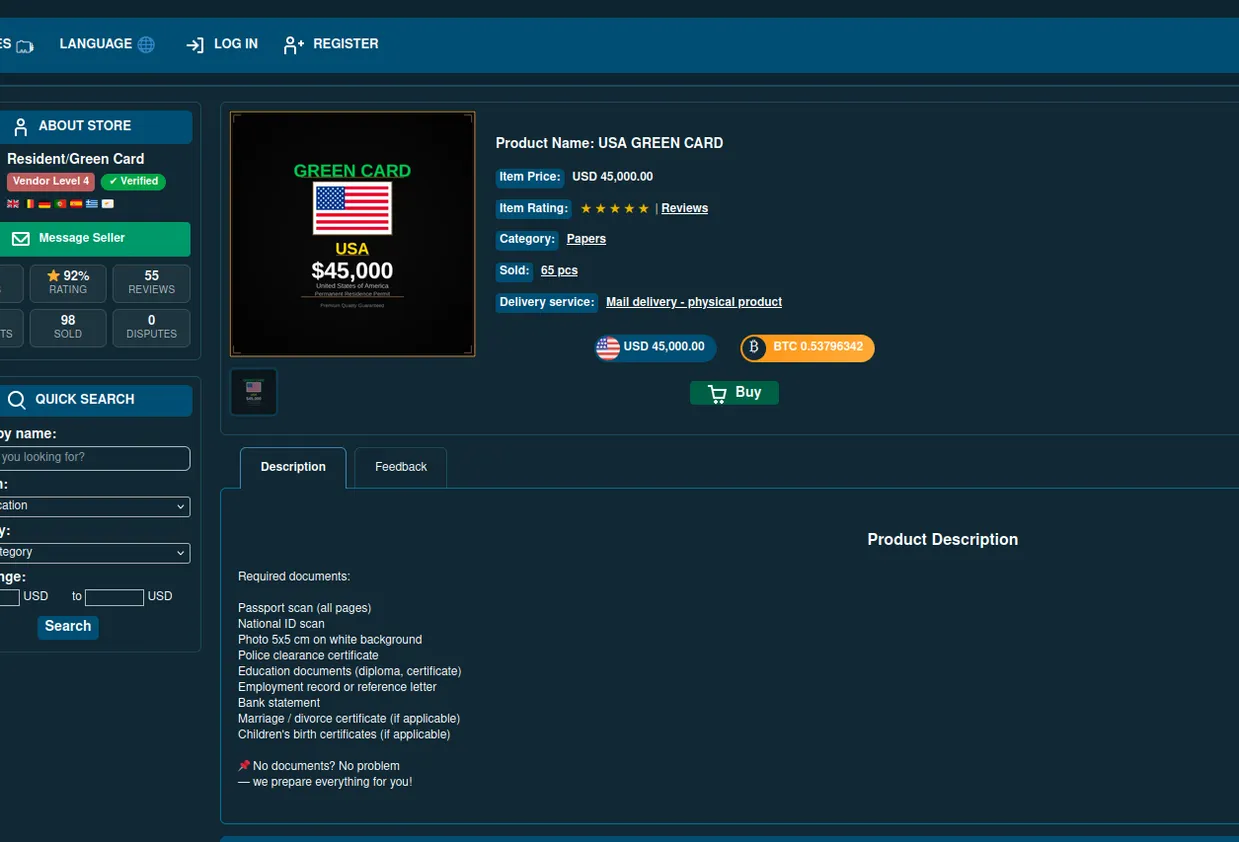
The Illusion of Buying Passports: Dark Web Scams Uncovered
We analyze dark web offers to buy passport online and green card for sale, revealing that low prices are always scams. We detail the true c…
Downloading Dark Web Apps: A Safe Approach
Learn how to safely download dark web apps with our step-by-step guide, ensuring your security and privacy throughout the process.
How to Search on Tor: Tips and Tricks
Learn effective techniques to search on Tor for valuable information while ensuring your privacy and security online.